

Before you start, you’ll need:
- An active SellAuth shop
- An active, paid Shopify plan
- A payment processor already set up and working on your Shopify store (e.g. Shopify Payments)
- Admin access to your Shopify store, to create and install a custom app
Create the app
1
Open the Shopify Developer Dashboard
Go to dev.shopify.com and click Create app. Name it SellAuth, or anything you like.
2
Set the access scopes
Under Configuration > Access scopes, enter exactly:
3
Release the app
Click Save, then go to Release and click Release again to confirm.
4
Install it on your store
From the app homepage, click Install app and confirm.
5
Copy the credentials
In the app settings, copy the Client ID and Client Secret into the matching fields on the SellAuth payment method page.
Configure your Shopify store
These settings control when payments capture and when orders fulfill — both have to be right before the webhook can do its job.1
Copy the webhook signing string
Go to Settings > Notifications > Webhooks. Under Your webhooks will be signed with, copy the string into Webhook Signature on the SellAuth payment method page.
2
Set the payment capture method
Go to Settings > Payments on your store, then Payment configuration. Under Payment capture method, choose either Automatically at checkout or Automatically when the entire order is fulfilled.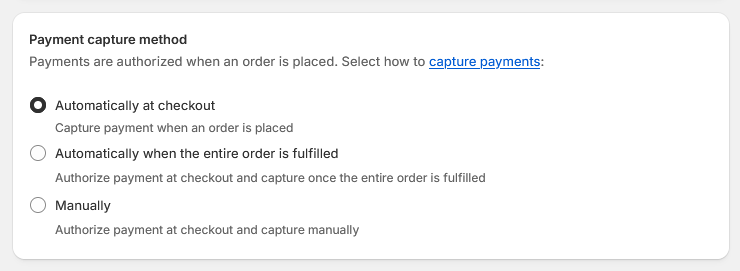 Manual capture is not supported. If it is left on manual, payments authorize in Shopify but never capture, and SellAuth never receives a fulfillment event to trigger delivery.
3
Set order processing
Go to Settings > General on your store, then Order processing. Enable Automatically fulfill the order’s line items — this is what fires the fulfillment event the webhook listens for.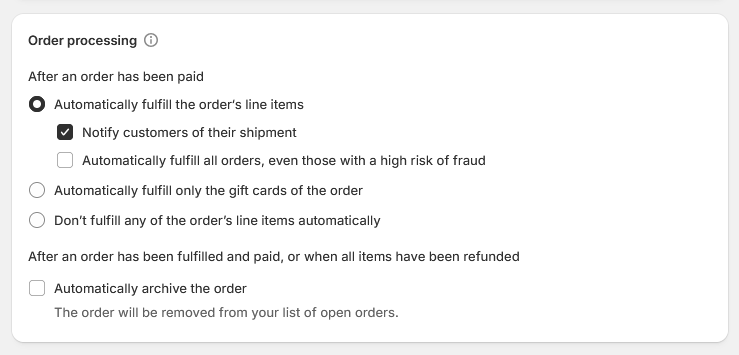 We also recommend enabling Notify customers of their shipment and disabling Automatically fulfill all orders, even those with a high risk of fraud, so risky orders can be reviewed manually before delivery.
Add the webhook
Without the webhook, payments succeed in Shopify and orders are never delivered in SellAuth.1
Create the webhook
Back in Settings > Notifications > Webhooks, click Create webhook and set:
Your shop ID is shown in the setup instructions on the payment method page in the dashboard.
2
Save both sides
Save the webhook in Shopify, then save the payment method in SellAuth.
Remaining settings
Storefront Domain. Youryour-shop.myshopify.com address.
Storefront Currency. The currency your Shopify store operates in, required so totals convert correctly. Set it in your SellAuth dashboard, on the same payment method’s Payment Methods page, under Storefront Currency. An incorrect value charges buyers the wrong amount rather than producing an error, so check it before going live.
Storefront Private Access Token and Variant ID are legacy fields kept for older setups. New connections use the client ID and secret, and can leave both empty.
Troubleshooting
Buyers pay but orders never deliver. The webhook is missing, pointed at the wrong URL, or the signature string does not match. All three produce the same result. Also check that Automatically fulfill the order’s line items is enabled under Order processing, and that the payment capture method is not set to Manual — either one stops the fulfillment event from firing at all. Requests fail with a permissions error. A scope is missing. Re-enter the full scope list, save, then release the app again, since scope changes do not apply until the app is released. Totals are wrong. The storefront currency does not match your Shopify store.Anti-fraud
Optional settings to reduce fraudulent and disputed orders. Both live in Shopify, outside the SellAuth payment method setup.1
Enforce CVV and AVS checks
Go to Settings > Payments, then under Shopify Payments, click Manage in the top right. Scroll to Fraud prevention and open it.Turn off Use automated settings — the checks below only apply while this is off. Then enable: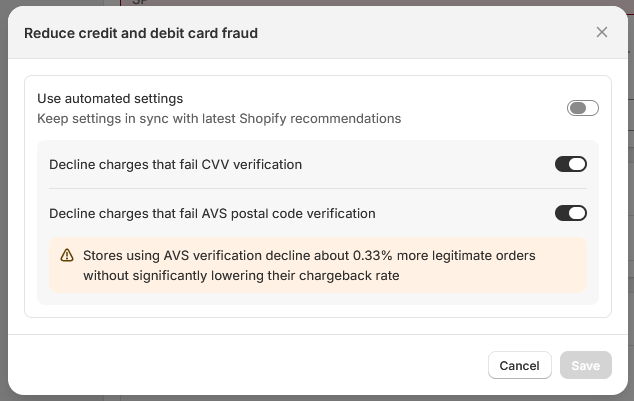
- Decline charges that fail CVV verification
- Decline charges that fail AVS postal code verification
2
Require matching, validated addresses (optional)
Only needed if you’re seeing fraud already, or want the strongest protection available. Go to Settings > Checkout, scroll to Advanced preferences, and open Address collection. Enable: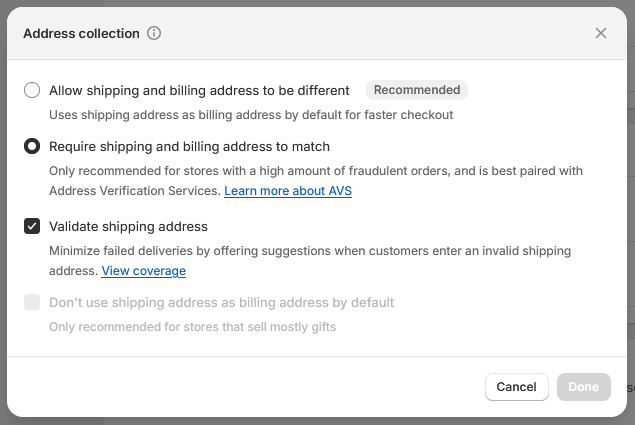
- Require shipping and billing address to match
- Validate shipping address
Next steps
Platform integrations
Lemon Squeezy, Pandabase and Whop.
Supported payment methods
Everything else you can connect.